

Instead of manually checking return on ad spend every day, automatically pause underperforming Meta ads with an automated rule that combines a ROAS threshold, a minimum-spend condition, and a defined reporting window. This guide covers the native Meta Ads Manager setup for 2026 and where TezAds fits into a broader paid-ad workflow.
- Use Meta Ads Manager to automatically pause underperforming Meta ads when purchase ROAS falls below your chosen threshold.
- Combine ROAS rules with minimum spend and a defined reporting window; low ROAS alone is insufficient.
- TezAds supports paid-ad creation, launch, and optimization; confirm custom rule controls before choosing it for this workflow.
- Start with notifications, check the matching ads, then enable pausing after validating tracking and account scope.
Why this matters
A pause rule enforces a decision; it does not diagnose why an ad stopped converting. Low reported ROAS can reflect weak performance, delayed purchase attribution, or broken purchase-value tracking. Treating all three as the same problem turns automation into a blunt instrument.
For an e-commerce brand, the decision starts with the return needed to support product margins and acquisition goals. For an agency, it also requires client approval: which accounts, campaigns, and spending limits fall within your authority?
Your 2026 rule should document those boundaries before it changes delivery. A threshold copied from another business is not a substitute for your own economics.
Before you start
- Account access: Use a Meta account with permission to manage the intended ad account and its automated rules. Agency users should verify the client account before selecting any ads.
- Reliable purchase data: Confirm that purchase events include the correct value and currency. Compare reported purchases with store records, allowing for different attribution methods rather than expecting identical totals.
- The non-obvious gotcha: Purchase attribution can arrive after the ad spend. A short reporting window can pause an ad before its purchases appear; choose the window and minimum-spend guardrail before enabling an action.
Write down your target ROAS, reporting window, eligible ads, minimum spend, and escalation owner. Keep these instructions beside the account so a replacement operator can understand the rule without reconstructing its purpose.
Choose the workflow before choosing the tool
Meta's native rules are the direct route for the specific pause workflow below. A broader advertising platform serves a different buying decision.
| Option | Best for | Useful capability | Limitation for this workflow |
|---|---|---|---|
| Meta Ads Manager automated rules | Brands or agencies enforcing a defined condition inside a Meta ad account | Evaluates supported conditions and applies a selected action | A rule follows reported metrics; it does not explain the business cause of weak ROAS |
| TezAds | E-commerce brands and agencies seeking broader paid-ad operations | Paid-ad campaign creation, launch, and optimization across the platforms named in its description | Custom ROAS thresholds, spend gates, evaluation schedules, and pause-rule controls require confirmation before purchase |
TezAds is best suited to e-commerce brands and agencies seeking paid-ad creation, launch, and optimization in one platform. That positioning does not establish support for every custom rule described here. Evaluate available controls, not assumed integrations or roadmap promises.
Rule scope
Select the ads the rule can change
- Open Meta Ads Manager and confirm the account name and currency.
- Open the Ads tab and select the ads covered by your operating instructions.
- Open Rules, select Create a new rule, and choose Custom rule where that option appears.
- Check Apply rule to. Keep the scope restricted to the intended ads rather than expanding it to unrelated delivery.
- Give the rule a name that identifies the account, objective, action, and reporting window.
Expected result: The rule targets only the ads you intend to manage. The selected account and scope match your written instructions.
For a brand, separate prospecting and remarketing decisions when their targets differ. Do not apply one threshold across campaigns simply because they promote the same product.
For an agency, keep each client's approval and rule configuration separate. Standardize the naming convention, not the client's economics. The ad automation guide for multi-account agencies covers the broader operating context.
Do not confuse ad-level and campaign-level performance. An ad can miss its target while the campaign meets its goal. Select the level that matches the decision you have permission to make.
Performance conditions
Define the ROAS threshold and spend gate
- Under Conditions, select the purchase-return metric that matches your website-purchase reporting. Read the metric definition before selecting it; purchase metrics and available labels depend on the account setup.
- Set the comparison to below your approved ROAS threshold. Use your business target, not a generic benchmark.
- Add an amount-spent condition with your approved minimum. Confirm that the conditions must be satisfied together before the rule acts.
- Under Time range, select the period used to evaluate performance. Check which period applies to each selected condition rather than assuming every condition uses the same basis.
- Record the selected metric, threshold, spend gate, and reporting period in the rule's operating notes.
Expected result: Low ROAS alone cannot trigger the rule. An eligible ad must also satisfy the spend condition within the configured evaluation logic.
For an illustrative 2026 setup, you might review a 7-day reporting window rather than today's results. This is a configuration example, not a recommended window for every account. Choose a period that fits your purchase cycle and the options available in the rule builder.
Likewise, a 72-hour observation period can be a written operating requirement for newly launched ads. Do not assume the reporting window enforces ad age: exclude new ads from the rule until they meet that requirement, or use an age condition only if the interface provides it.
Check the condition logic
A spend gate answers whether the ad has spent enough to qualify for your decision. A reporting window answers which results the rule considers. Neither guarantees statistical certainty.
Check these items before proceeding:
- Metric: Website purchase return, not an unrelated purchase or engagement measure.
- Currency: The minimum-spend condition uses the selected ad account's currency.
- Window: The rule and your manual comparison use matching dates.
- Eligibility: New launches and protected tests remain outside scope until approved.
Action and validation
Test the rule before enabling pausing
- In Action, select Send notification only for the initial validation.
- Configure Schedule using the evaluation timing available in your account. Do not assume a reporting window also determines how often the rule checks performance.
- Configure Notifications so the responsible operator receives the result.
- Review the complete scope, conditions, and action, then select Create.
- Compare notifications with the corresponding Ads Manager rows. Use matching columns and reporting dates.
- After validating the matches, edit the rule and change Action to Turn off ads. Recheck the scope before saving.
Expected result: The rule first identifies qualifying ads without stopping delivery. After validation, qualifying ads can be switched off by the configured action.
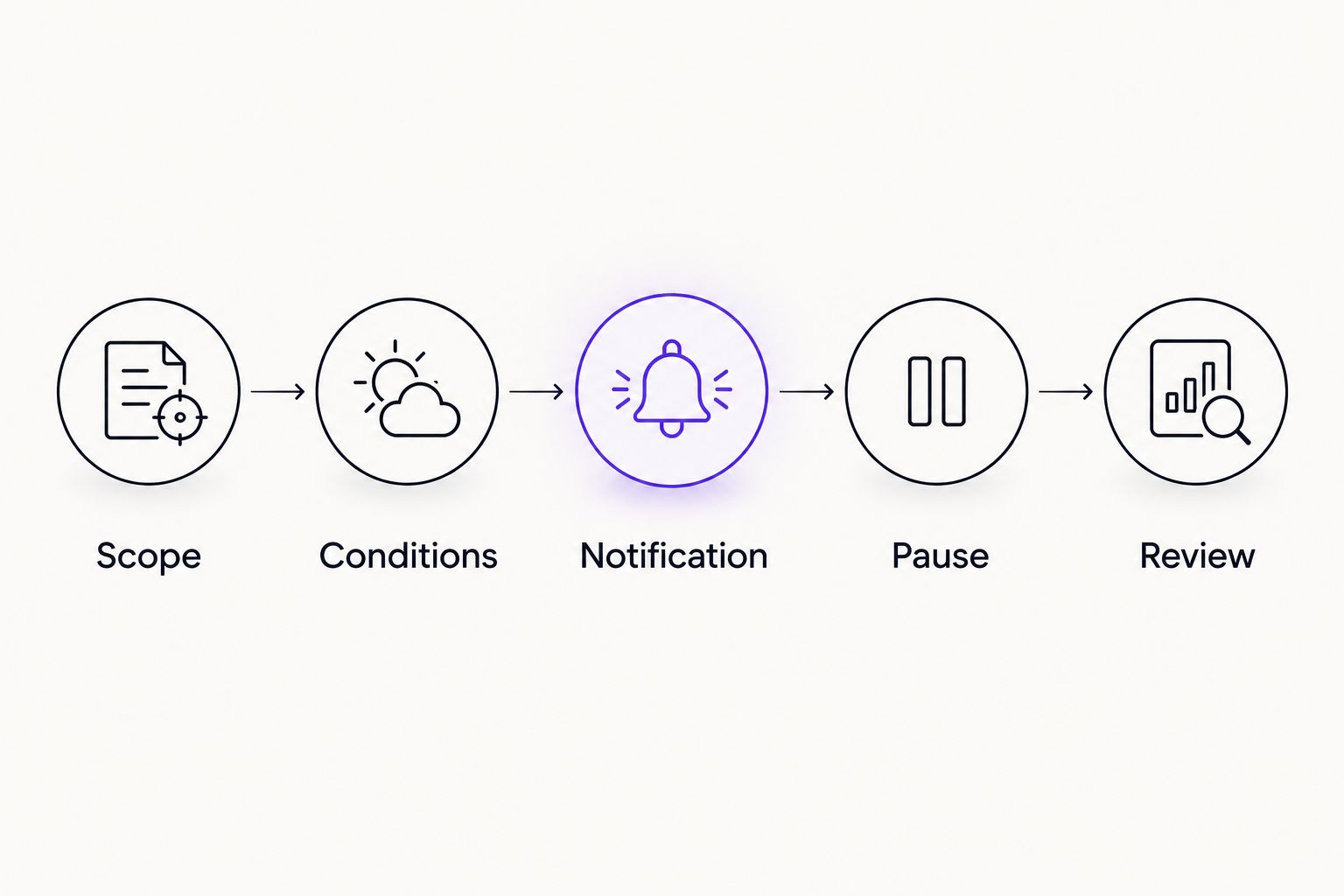
Use this sequence for your 2026 rollout: Scope, Conditions, Notification, Pause, Review. Skipping validation saves setup effort but removes the opportunity to catch an incorrect metric or account selection before delivery changes.
Choose an operator review interval explicitly. For example, a 24-hour review interval is a staffing decision for an initial rollout, not a claim about Meta's evaluation frequency. Shorten or lengthen it according to the consequences of an incorrect pause and the team's coverage.
A brand owner should check whether the rule stopped the intended ads without interrupting protected tests. An agency operator should also record the account, affected ads, reason, and any client escalation required by the agreement.
Second workflow: notify instead of pausing
Use notification-only rules when someone must approve the decision. This variant uses the same ROAS and spend conditions but leaves delivery unchanged until an operator reviews the alert.
- Duplicate the documented scope and conditions into a separate rule, or retain the notification-only version created during validation.
- Keep Action set to Send notification only.
- Assign an owner who checks tracking, purchase lag, current delivery, and the reporting window before acting.
- Record whether the operator paused the ad, left it running, or investigated a measurement issue.
Expected result: The account surfaces qualifying ads without delegating the final delivery decision.
| Workflow | Best for | Advantage | Trade-off |
|---|---|---|---|
| Automatic pausing | Approved, repeatable decisions with validated measurement | Stops qualifying ads without waiting for manual review | Incorrect conditions can interrupt useful delivery |
| Notification only | New rules, protected launches, or accounts requiring approval | Preserves a human decision before delivery changes | Someone must respond; the alert itself does not stop spend |
Do not pair the pause rule with automatic restarting by default. A changing reporting window or late-attributed purchase can change the qualifying result. Require a deliberate restart decision until you have defined separate, non-conflicting recovery conditions.
Troubleshooting
The rule pauses newly launched ads
Check whether the selected window contains enough history for each ad. A long reporting window does not make a new ad old. Remove protected launches from scope and apply your documented observation requirement before including them.
ROAS is blank or unexpectedly absent
Inspect purchase events, purchase values, currency, and the selected return metric. Do not assume a missing value behaves like a numeric zero in rule evaluation. Keep the rule notification-only until reported purchase data supports the intended decision.
The rule disagrees with your dashboard
Align the date range, account time zone, purchase metric, and attribution settings used for comparison. Store revenue and attributed advertising revenue answer different questions. Investigate those definitions before changing the threshold to force agreement.
The wrong ads stop delivering
Review Apply rule to, account selection, and other active rules. A broad rule can overlap a narrow one, so changing only the rule you just created does not resolve every conflict. Pause the conflicting automation while you inspect its scope.
An ad stays off after ROAS improves
A pause action is not a recovery policy. Review the latest results and any changes made since the pause before manually restarting delivery. Improved reported ROAS alone does not establish that the original problem has been fixed.
Customize your workflow
Extend a validated rule by improving coverage, not by immediately adding more actions. Document which tests remain excluded, who approves threshold changes, and how operators handle missing purchase data.
For e-commerce brands, review targets when product economics, promotions, or acquisition objectives change. Keep the pause rule aligned with the business decision it enforces.
For agencies, use a shared setup template with client-specific thresholds and permissions. Include a change log so the account owner can distinguish a rule change from a campaign change.
For your 2026 software review, ask TezAds to demonstrate the exact workflow you need: metric selection, scope, spend conditions, notification testing, pause actions, and action history. Treat an unavailable control as unavailable; a roadmap item is not a working safeguard.
FAQ
How do I automatically pause underperforming Meta ads?
Create a custom automated rule in Meta Ads Manager with a purchase ROAS condition, a minimum-spend condition, and the Turn off ads action. Validate the same conditions with notifications before enabling pausing.
What ROAS target should trigger a pause?
Use the threshold approved for your business economics and campaign objective. Product margins, acquisition goals, and attribution definitions make a universal pause threshold inappropriate.
Should I pause ads using today's ROAS?
Do not use today's ROAS as your default pause signal without validating purchase lag and spending patterns. A short window can evaluate spend before attributed purchases appear.
Can an agency use the same pause rule for every client?
An agency can reuse a setup template, but each client needs approved thresholds, scope, permissions, and escalation ownership. Copying identical financial conditions across accounts ignores different business economics.
Does TezAds support this exact custom ROAS pause rule?
TezAds provides paid-ad creation, launch, and optimization, but support for this exact combination of custom rule controls requires confirmation. Request a demonstration of the metric, spend gate, reporting window, and pause action before relying on it.
Why did my ad pause before a purchase appeared?
Purchase attribution can arrive after the rule evaluates spend and reported return. Review the evaluation window, purchase reporting, and minimum-spend condition before restarting the ad.
Should paused ads restart automatically in 2026?
Use a deliberate restart decision unless you have defined and validated separate recovery conditions. A later change in attributed ROAS does not by itself explain why performance changed.
One last thing
A reporting window is not an ad-age filter. An ad launched today still has only today's history inside a longer window. Protect new tests through explicit eligibility rules, not through the comforting appearance of a longer date range.