
Instead of manually copying Shopify sales into campaign reports, set up Shopify Google Ads conversion sync through the Google & YouTube sales channel so completed purchases and order values reach Google Ads. Then make the verified purchase action a bidding goal—not merely a number in your reports.
- For Shopify Google Ads conversion sync, use Google & YouTube purchase tracking and verify the bidding goal.
- Send purchase value, currency, and a unique transaction ID; avoid duplicate primary purchase actions.
- Google Analytics purchase imports are an alternative measurement route, not an additional purchase goal by default.
- TezAds handles paid campaign automation; verify checkout measurement separately before changing bidding.
Why this matters
Google Ads bidding follows the conversion goals assigned to a campaign. A working checkout connection does not fix a campaign that optimizes for the wrong action. If an add-to-cart action counts toward the sales goal, bidding receives a different instruction from the one you intended.
TezAds is best suited to e-commerce brands and agencies seeking paid campaign creation, launch, and optimization. TezAds is a paid advertising automation platform; this guide covers the separate measurement setup that supplies Google Ads with purchase signals. Do not treat campaign automation as proof that checkout tracking works.
For your 2026 setup, follow the purchase event from Shopify through to the campaign's selected conversion goal. A store owner needs trustworthy revenue signals. An agency also needs a documented account map so one client's orders never become another client's bidding input.
Before you start
- Account access: Have Shopify access to manage sales channels, Google Ads access to manage conversions and goals, and the Google account authorized to connect them. Agencies should confirm the client account ID, not just the manager account name.
- Checkout materials: Prepare a controlled test order, permission to inspect tracking, and an inventory of existing purchase tags, app connections, and Analytics imports. Record the order value and currency for comparison.
- The gotcha: Existing purchase tracking can remain active after a new connection is installed. Two separately configured purchase actions can count the same order twice; transaction IDs do not deduplicate purchases across different conversion actions.
Choose the measurement route before installing another tag. Adding a connector to an undocumented setup makes duplicate tracking harder to diagnose.
Choose your purchase measurement route
For a 2026 Shopify setup, start with the Google & YouTube sales channel when you want Shopify's Google connection to handle Google Ads purchase measurement. Use an existing Google Analytics purchase implementation when that route already meets your measurement requirements and you have validated its imports.
| Route | Best for | Advantage | Limitation |
|---|---|---|---|
| Google & YouTube purchase tracking | Stores and agencies wanting a Shopify-managed Google Ads connection | Keeps the connection and its settings within Shopify's sales-channel workflow | Requires an audit of older tags and imported purchase actions |
| Google Analytics purchase import | Stores and agencies with an established, validated Analytics measurement setup | Uses Analytics purchase events as the source for Google Ads conversions | Adds an Analytics property and import configuration to troubleshoot |
Neither route makes Google Ads revenue identical to Shopify revenue. Attribution rules, consent, conversion windows, and reporting dates affect what appears in Google Ads.
Use one verified purchase route for bidding before comparing alternatives. Keep an alternative purchase action secondary while evaluating it, and inspect campaign-specific goals before assuming it cannot influence bidding.
Account connection
- In Shopify, open Settings, then Apps and sales channels. Open the Google & YouTube sales channel, or install it through Shopify if it is not present.
- Connect the Google account authorized to manage the intended advertising account. Complete the permissions requested for the connection you are configuring.
- In the channel's account settings, select the correct Google Ads account. Compare the numeric customer ID with the account shown in Google Ads; account names alone are not a reliable check.
- Inspect the channel's conversion-measurement settings and complete the purchase-tracking setup it presents. Keep the existing tracking inventory beside you so you can identify overlapping implementations.
- Record the connected Shopify store, Google Ads customer ID, connection owner, and intended purchase conversion action.
Expected result: The Shopify channel shows the intended Google connection, and you can identify the receiving Google Ads account. Account connection alone is not evidence that a purchase event has arrived.
For an e-commerce brand, keep this record with your measurement documentation. For an agency, create a separate record for each client and confirm that the client retains appropriate ownership and access.
Purchase tracking
- In Google Ads, open Goals, Conversions, then Summary. Find the purchase conversion action associated with your chosen connection and inspect its source.
- Open the action's settings. Confirm that its category represents a purchase and that its value configuration accepts transaction-specific values rather than substituting one fixed value for every order.
- Check Count. For retail purchases, Every is the appropriate setting when you want each qualifying purchase counted, rather than only one conversion per ad interaction.
- Inspect a controlled checkout using the connection's diagnostics and Google's tag-debugging tools where applicable. Verify the purchase event's value, currency, and transaction ID.
- Compare the received value with the Shopify order using a written revenue definition. State whether your comparison includes shipping, tax, and discounts; do not compare unlike totals.
Expected result: A completed checkout produces a purchase event with the intended value, currency, and unique transaction ID. The receiving conversion action is identifiable in Google Ads.
Use a target of 1 purchase event per completed order in the receiving conversion action when checking event duplication. This is a validation rule, not a promise that every Shopify order becomes an attributed Google Ads conversion.
Check 3 fields together: purchase value, currency, and transaction ID. A value without the right currency is not a usable revenue check. A missing transaction ID makes repeat-event diagnosis harder.
For your 2026 implementation, do not build around legacy checkout scripts without checking Shopify's current supported tracking methods. Use the sales channel's supported implementation rather than pasting an old checkout snippet into an unrelated theme location.
Bidding goals
- Open the verified purchase action in Google Ads and inspect Action optimization. Set the purchase action to Primary when it is the purchase signal you intend to use for bidding.
- Review other purchase actions. Set overlapping measurement actions to Secondary unless a documented campaign design requires otherwise. Do not delete historical actions just to simplify the list.
- Open the campaign's Settings and inspect its conversion goals. Confirm that the selected goals include the intended purchase action, rather than assuming account defaults are appropriate.
- Check custom goals separately. A secondary action included in a custom goal can still be used for bidding, so the action-level label is not the whole configuration.
- Match the bid strategy to the verified signal. Maximize conversion value uses reported conversion values; Maximize conversions focuses on conversion volume. Do not choose a value-based strategy to compensate for incorrect values.
Expected result: The campaign's goals point to the intended purchase measurement, and overlapping checkout actions are not unintentionally included in bidding.
Clean measurement comes before a bid-strategy change. A store should verify its revenue signal before adjusting targets. An agency should record the previous goals and approval for the change so reporting shifts have an explanation.
Order validation
- Complete a controlled order and retain its order identifier, timestamp, value, and currency. Verify event delivery separately from advertising attribution.
- Check the purchase event in the available diagnostics. Confirm the transaction ID and inspect whether another tag or import sends the same purchase to a different action.
- Review the purchase action's diagnostics and reporting after processing. An order without an eligible Google Ads interaction does not establish that an attributed conversion should appear.
- Segment Google Ads reporting by conversion action. Compare the intended purchase action with other checkout-related actions instead of reading only the combined total.
- Document the result and remove test activity from your business analysis. Do not assume a Shopify test order or refund automatically reverses a Google Ads conversion.
Expected result: You can explain the event's path, identify its receiving action, and distinguish tracking delivery from attributed advertising revenue.
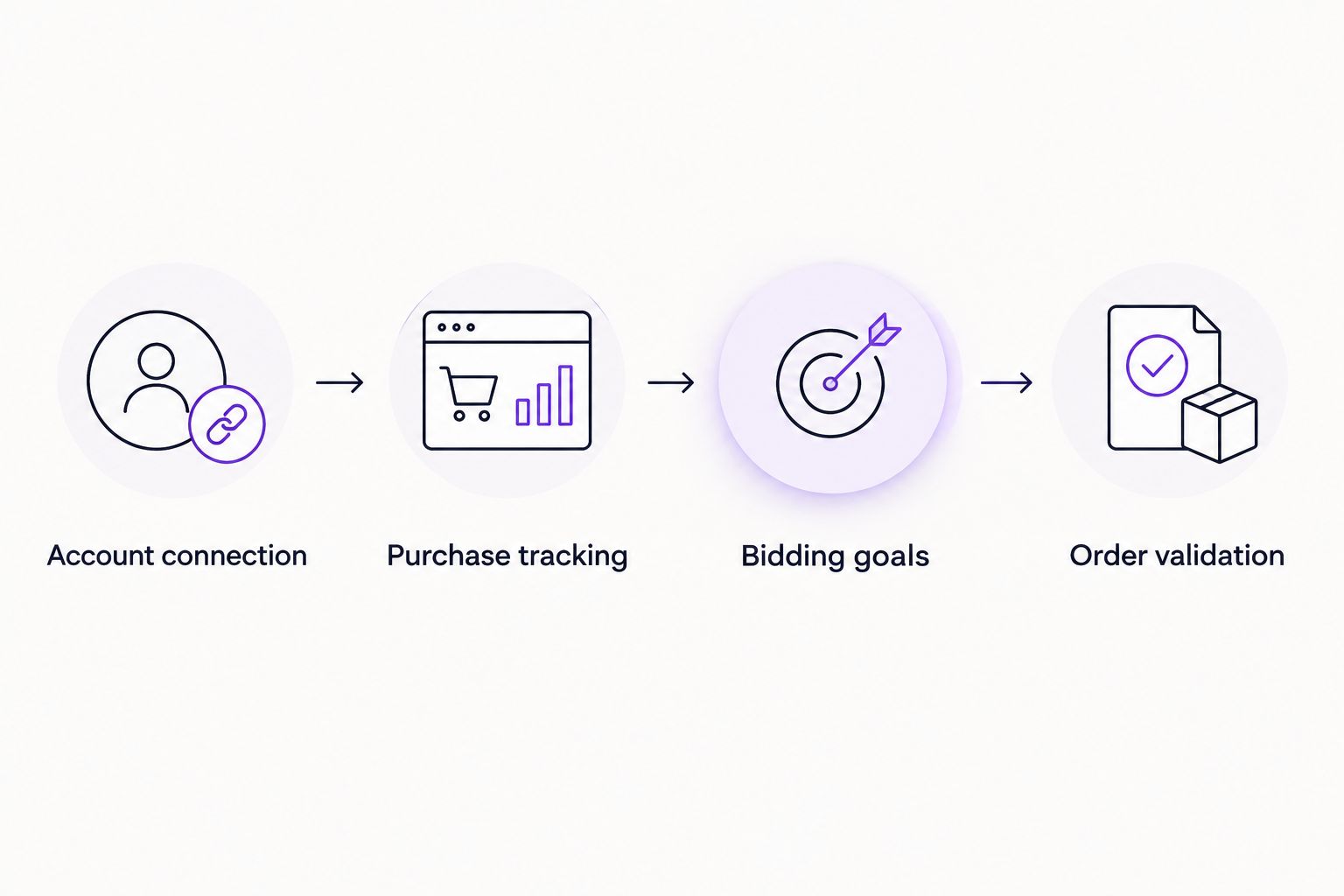
The validation sequence is Account connection, Purchase tracking, Bidding goals, then Order validation. Keep that sequence in your 2026 handover document so another operator can repeat it.
Alternative workflow: import purchases from Google Analytics
Use the Analytics route when your Shopify purchase events already reach the correct Google Analytics property and you want that property to supply Google Ads conversions. Do not add it as a second primary purchase signal merely because the connection is available.
- Verify the purchase event in Google Analytics. Inspect its transaction ID, value, and currency, and confirm that it represents completed orders rather than checkout starts.
- In Analytics, open Admin, then Google Ads links, and use Link to connect the intended advertising account if it is not already connected.
- In Google Ads conversion setup, choose the connected Analytics property and its purchase event as the import source. Follow the available import workflow and inspect the resulting conversion action.
- Keep the imported action Secondary while comparing it with the existing purchase implementation. Check custom goals before treating this as observation-only measurement.
- If you replace the original route, update campaign goals deliberately. Record the change date and compare conversion-action segments rather than merging both routes into one unexplained total.
Expected result: An identifiable Analytics-sourced purchase action appears in Google Ads, with a documented decision about whether it supplies bidding or comparison reporting.
The advantage is continuity with an established Analytics setup. The trade-off is another measurement layer: a working Shopify event does not prove that the Analytics link, import, and campaign goal are all correct.
Troubleshooting
Shopify records orders, but Google Ads shows no purchases
Separate event delivery from attribution. Check the connected account, purchase-action diagnostics, consent behavior, and whether the order followed an eligible advertising interaction. Do not reinstall tracking solely because an organic test order does not appear as an attributed sale.
Google Ads appears to count purchases twice
Segment by conversion action and inspect the sources. Look for a channel-created action alongside an older tag or Analytics import. Keep the intended action for bidding and remove unintended goal overlap; use transaction IDs to investigate repeat events within an action.
Purchase counts look plausible, but values are wrong
Inspect the event payload and the conversion action's value settings. Confirm currency and compare the same treatment of discounts, shipping, and tax. Fix the value source before changing a revenue-based bidding target.
Purchases appear in reporting, but bidding ignores them
Check Action optimization, campaign conversion goals, and custom goals. A visible conversion is not automatically a bidding input. Confirm the campaign uses the intended purchase action rather than an unrelated account-default goal.
A refund does not reduce reported conversion value
A Shopify refund is not proof that a Google Ads conversion adjustment was sent. Check whether your measurement route supports adjustments and whether they are configured. Where supported, use a restatement for a corrected value or a retraction to remove a conversion, matched to the original conversion identifiers.
Customize your workflow
For a 2026 store rollout, assign an owner to purchase diagnostics and require a measurement check after checkout, consent, or tracking changes. Keep revenue definitions stable so an apparent performance change does not hide a measurement change.
For an agency rollout, document each client's store, advertising account, purchase action, campaign goals, and approval owner. Reuse the checklist—not another client's identifiers or value settings.
TezAds paid campaign automation covers campaign creation, launch, and optimization. Keep that operating workflow separate from connector validation: only describe an integration as active after verifying it in the account, and label planned functionality as planned.
FAQ
What's the simplest way to connect Shopify purchases to Google Ads bidding?
Start with Shopify's Google & YouTube sales channel, verify its purchase conversion action, and include that action in the campaign's bidding goals. Audit existing purchase tracking before enabling another implementation.
Should I use Google Analytics imports or direct Google Ads purchase tracking?
Use one verified route as your purchase bidding signal. Google & YouTube suits a Shopify-managed connection; Analytics imports suit an established, validated Analytics implementation.
Why don't Shopify sales match Google Ads conversions?
Shopify records store orders, while Google Ads reports conversions attributed under its measurement rules. Compare matching dates, currencies, revenue definitions, and conversion actions before diagnosing missing tracking.
Does connecting Shopify automatically make purchases a bidding goal?
A connection alone does not verify the campaign's bidding goal. Inspect the purchase action, its action optimization setting, and the campaign's selected conversion goals.
Can two purchase conversion actions count the same Shopify order?
Yes, separate purchase actions can each record the same order. Transaction IDs do not deduplicate purchases across different conversion actions, so inspect goal overlap.
Can an agency configure this through its Google Ads manager account?
An agency can work through authorized manager access, but the Shopify connection must point to the intended client advertising account. Verify the customer ID and retain a client-specific measurement record.
Does TezAds replace Shopify checkout tracking?
TezAds provides paid campaign creation, launch, and optimization. Validate Shopify purchase measurement and Google Ads goals separately rather than assuming campaign automation establishes checkout tracking.
One last thing
A secondary conversion action is not an absolute bidding exclusion. Google Ads custom goals can use secondary actions for bidding. Before signing off your 2026 conversion setup, inspect the campaign's actual goals—not just the labels in the conversion-action list.