Instead of manually rebuilding every Meta ad for YouTube, repurpose the original footage through a repeatable workflow: select a proven message, recut it for the destination, configure a separate campaign, and verify purchase tracking before launch. To repurpose Meta ads for YouTube in 2026, transfer the creative idea—not the campaign settings or reported results.
- To repurpose Meta ads for YouTube, reuse the message and footage, then rebuild delivery and measurement separately.
- TezAds supports campaign creation, launch, and optimization across Meta and YouTube for e-commerce brands and agencies.
- Check music permissions before moving Meta creative into YouTube campaigns.
- Judge YouTube creative using YouTube campaign results, not the original Meta ad’s ROAS.
Why this matters
A successful Meta ad gives you a message worth testing. It does not prove that the same edit, audience, or bidding setup will work on YouTube. The transferable asset is the customer problem, demonstration, or objection the ad addresses.
TezAds is a fit for e-commerce brands and agencies seeking paid ad automation across Meta and YouTube. Its scope includes campaign creation, launch, and optimization; this workflow keeps creative adaptation and launch approval explicit rather than assuming an automatic cross-platform transfer.
For the broader operating model, see multi-platform ad management software. Keep the distinction clear in your 2026 plan: coordinating channels is different from copying a campaign unchanged.
Before you start
- Access: Have permission to inspect the source Meta campaign, create campaigns in the destination Google Ads account, and upload the approved video to an appropriate YouTube channel. Agencies should confirm the client’s account and channel ownership before editing.
- Materials: Collect the original footage, copy, landing page, creative-level results, brand approvals, and purchase conversion setup. Use original files rather than a screen recording of the published ad.
- The gotcha: Check music, creator, testimonial, and footage permissions for YouTube advertising. Permission to run an asset on Meta does not automatically establish permission to use it elsewhere.
Do not begin with a bulk export. Start with a source creative whose message you can explain and whose destination page still matches the promise.
Source brief
Select the message
- Open Ads Manager and select the correct ad account. Set the date range to the period you intend to evaluate.
- Open the Ads tab. Use Columns to inspect results relevant to the campaign objective, alongside spend and delivery.
- Open the source ad’s Preview and record its opening message, product demonstration, supporting evidence, and call to action.
- Retrieve the original video from your asset library or production files. Record the source ad name and original file name together.
Expected result: You have a traceable source asset and a clear explanation of what deserves another test. A high click count alone is not a reason to select an ad for a purchase campaign.
For an e-commerce brand, connect the creative to the product and customer problem. For an agency, add the client, approver, destination account, and permitted usage to the same brief. This prevents a reusable production process from becoming an account-mixing problem.
Separate evidence from assumptions
Record what the source campaign actually establishes. Purchase results support testing the message again; they do not establish a YouTube acquisition cost or a cross-channel audience match.
Keep these brief fields separate:
- Source evidence: What happened in the Meta campaign.
- Creative hypothesis: Why the opening or demonstration deserves another test.
- Destination goal: What the YouTube campaign should accomplish.
- Approval owner: Who can authorize the asset and campaign.
Use the same brief for the 2026 creative library. Preserve the original result, but leave the destination result blank until the YouTube campaign produces its own evidence.
Creative exports
Choose the destination format
Choose the intended viewing environment before editing. A horizontal product demonstration and a vertical Shorts edit can share footage without sharing the same crop or pacing.
| Creative approach | Best for | Advantage | Limitation |
|---|---|---|---|
| Horizontal demonstration | Explaining product use in an in-stream creative | Leaves room for product context and supporting detail | A tight vertical source can require additional footage |
| Vertical demonstration | A mobile-first Shorts creative | Preserves a portrait composition | Horizontal footage needs deliberate reframing |
| Direct reuse | Testing an already suitable source file | Requires less editing | Keeps any weak opening, misplaced text, or platform-specific wording |
A standard horizontal export is 1920 × 1080 pixels, using a 16:9 aspect ratio. A standard vertical export is 1080 × 1920 pixels, using a 9:16 aspect ratio. These are practical production canvases, not a promise of eligibility for every campaign format.
Check the selected campaign’s current asset requirements before export. Do not stretch a portrait video to fill a horizontal canvas; reframe it, rebuild the composition, or choose different footage.
Rebuild the opening and ending
- Put the customer problem or product demonstration at the beginning. Remove introductions that delay the reason to watch.
- Make the product and central claim understandable without relying on the original Meta caption.
- Add readable captions and inspect their placement in the destination preview. Keep essential wording away from interface overlays.
- Replace platform-specific instructions with an action that matches the destination ad and landing page.
- Export each approved version with a distinct file name identifying the concept, orientation, and revision.
Expected result: Each export works as a standalone ad. The viewer can understand the offer without seeing the original Meta post.
Skippable in-stream ads allow viewers to skip after 5 seconds. Put the reason to keep watching before that point; do not treat it as a requirement to cram the entire sales argument into the opening.
Approve the adaptation
For an e-commerce brand, review the demonstration against the actual product page. Remove claims the page cannot support and check that the advertised variant matches the destination.
For an agency, obtain approval for the adapted export—not merely the original Meta creative. Cropping, captions, voiceover, and a revised call to action can change what the ad communicates.
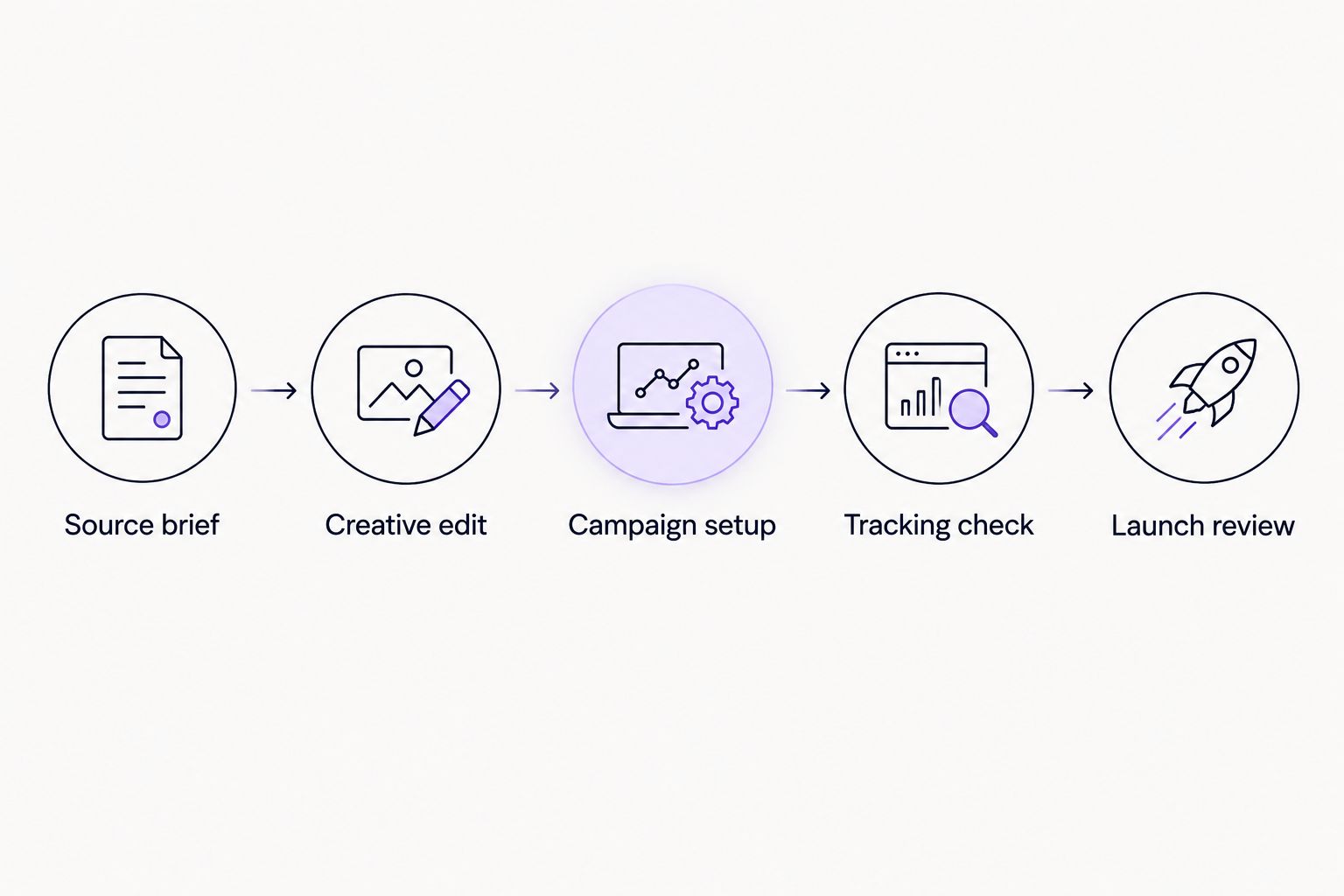
Use this production sequence:
- Source brief: Preserve the message and evidence.
- Creative edit: Adapt the composition and opening.
- Campaign setup: Configure destination delivery.
- Tracking check: Confirm the intended action.
- Launch review: Approve the final configuration.
Google Ads configuration
Build the destination campaign
- Upload the approved export to the intended YouTube channel. Confirm that the video can be used in the advertising workflow before building the ad.
- In Google Ads, open Campaigns, select the plus button, and choose New campaign.
- Select the objective that matches the brief. For a purchase-focused workflow, inspect Sales and the conversion goals attached to it.
- Choose an eligible campaign type that supports YouTube video delivery and the intended objective. Do not choose a views-focused setup merely because the creative is a video.
- Configure locations, languages, budget, bidding, and audience settings for the destination campaign. Review network and placement controls exposed by that campaign type.
Expected result: The campaign has its own delivery settings and a goal consistent with the business outcome. Nothing depends on Meta targeting or optimization settings transferring automatically.
Google Ads setup paths depend on the objective and campaign type. In 2026, use the options actually shown in your account rather than forcing instructions from an unrelated campaign subtype.
Attach the approved ad
- Select the approved YouTube video in the ad-creation step.
- Enter the matching landing page in Final URL.
- Complete the headline and call-to-action fields available for that ad format. Keep their meaning consistent with the video.
- Inspect the available ad previews. Check cropping, caption placement, destination wording, and any shortened text.
- Review the full configuration before publishing. If another person must approve it, stop before publication and preserve the draft.
Expected result: The video, written ad elements, and landing page make the same promise.
An e-commerce team should check the final destination on mobile. An agency should also verify the customer account, client identity, and approval record before authorizing delivery.
TezAds paid ad automation covers campaign creation, launch, and optimization across the channels described here. Keep account permissions, asset rights, and final approval in the operating process; do not assume an automated asset-import feature or a particular connector is available without checking it in the product.
Measurement and launch review
Verify the purchase goal
- In Google Ads, open Goals, then Conversions, then Summary.
- Inspect the purchase conversion action intended for this campaign. Check its source, status, value handling, and whether it is used for bidding.
- Follow the purchase journey using your established testing procedure. Confirm that the intended event reaches the measurement setup without exposing customer information.
- Check for duplicate purchase measurement, especially when both website tagging and imported analytics events exist.
- Record the campaign name, creative version, conversion action, and launch approval together.
Expected result: You can identify the action the campaign is optimizing toward and explain how purchase value enters reporting.
For implementation details, use the guide to connecting Shopify checkout data to Google Ads bidding. A creative test cannot answer a sales question when the purchase signal is broken.
Evaluate the destination result
Judge YouTube delivery inside its own measurement context. Meta and Google Ads use different attribution settings and reporting systems; adding both platforms’ attributed purchases does not establish a deduplicated sales total.
For e-commerce brands, compare campaign reporting with store revenue and your established attribution approach. For agencies, document the reporting basis before presenting cross-channel ROAS to a client.
Use the 2026 test log to record what changed and when. Change one creative variable at a time when the purpose is to learn which creative element affected the result; a simultaneous audience, bid, and landing-page change answers a different question.
Variant: refresh YouTube creative after a Meta update
A second workflow starts when the Meta team publishes a revised creative. Treat that revision as a candidate for adaptation, not permission to overwrite the destination ad automatically.
- Compare the revised source with the currently approved YouTube export.
- Identify the changed element: opening, demonstration, supporting claim, or call to action.
- Recheck rights and approvals if the revision introduces new footage, music, or a creator.
- Create a separately named destination version and review its preview.
- Record the replacement or test decision without erasing the previous creative’s history.
Expected result: You can connect each destination version to its source revision and approval.
An e-commerce brand gets a repeatable refresh process. An agency gets a client-specific approval trail. Neither workflow requires an unverified automatic trigger between platforms.
Troubleshooting
The source music cannot move with the video
Replace the audio with material licensed for the destination use, then review the edit again. Do not assume an in-platform music selection grants advertising rights across platforms.
The destination crop hides the product
Return to the original footage and reframe the composition. Shrinking the entire portrait edit into a horizontal frame does not fix unreadable captions or a tiny product demonstration.
The video is missing from the ad-creation step
Check that the intended upload is accessible, finished processing, and eligible for the chosen advertising use. Confirm the correct channel and video before rebuilding the campaign.
Purchases appear twice
Inspect the conversion actions and their bidding roles. Determine whether separate measurement sources represent the same purchase before changing or removing an action; keep reporting and optimization goals distinct.
Clicks arrive, but the destination disappoints
Check the final page, mobile experience, product match, and purchase path before blaming the edit. A video promising a specific product should not send the viewer to an unrelated collection or a broken destination.
Customize your workflow
Use a compact creative register rather than scattered exports. Keep the source asset, destination version, rights status, approval owner, campaign, and measurement definition together.
For e-commerce teams, organize the register around products and customer problems. For agencies, separate each client’s assets, access, and approvals before expanding the workflow across accounts.
Keep current capabilities separate from requested automation. A planned import, approval rule, or reporting connection belongs in a backlog until it is available and verified—not in the launch procedure.
FAQ
Can I repurpose Meta ads for YouTube without filming again?
Yes, when the original footage supports the destination format and you have the necessary usage rights. Re-edit the opening, captions, composition, and call to action rather than assuming the published Meta ad is ready unchanged.
Can I copy a Meta campaign directly into Google Ads?
Treat the Google Ads campaign as a separate setup. Reuse approved creative assets, but configure the destination objective, audience, bidding, budget, and conversion goals independently.
What video size should I use for YouTube ads?
A standard horizontal production canvas is 1920 × 1080 pixels, while a standard vertical canvas is 1080 × 1920 pixels. Check the chosen campaign format’s current requirements before exporting.
Can I keep the music from my Instagram ad?
Only keep the music if its license covers the intended YouTube advertising use. Check the license and creator agreement rather than relying on the fact that the audio was usable on Instagram.
Does TezAds handle both Meta and YouTube campaigns?
TezAds supports paid campaign creation, launch, and optimization across Meta and YouTube. Verify any specific asset-transfer or integration workflow in the product before making it part of your process.
Should a winning Meta ad get the same ROAS on YouTube?
No, a Meta result does not establish a YouTube result. Evaluate the destination campaign using its own delivery data, conversion configuration, and attribution context.
How should an agency manage client approvals for repurposed ads?
Approve the adapted destination video and campaign configuration separately from the source Meta ad. Record the client, account, creative version, rights, and approver before launch.
One last thing
Make the file name useful before making the workflow faster. A source identifier, destination format, and revision label let you connect an ad back to its footage and approval. For your 2026 workflow, that traceability is more useful than a folder full of files called final.